How to Set Up an Android Work Profile with Shelter
You don't need GrapheneOS to sandbox apps on Android. Shelter uses Android's built-in Work Profile to isolate apps — including the ones from work — from your personal data.
Microsoft Teams wants to read your contacts. Slack wants access to your files. Your employer's MDM software wants to manage your device. You installed these because you had to — but that doesn't mean they get to see everything on your phone.
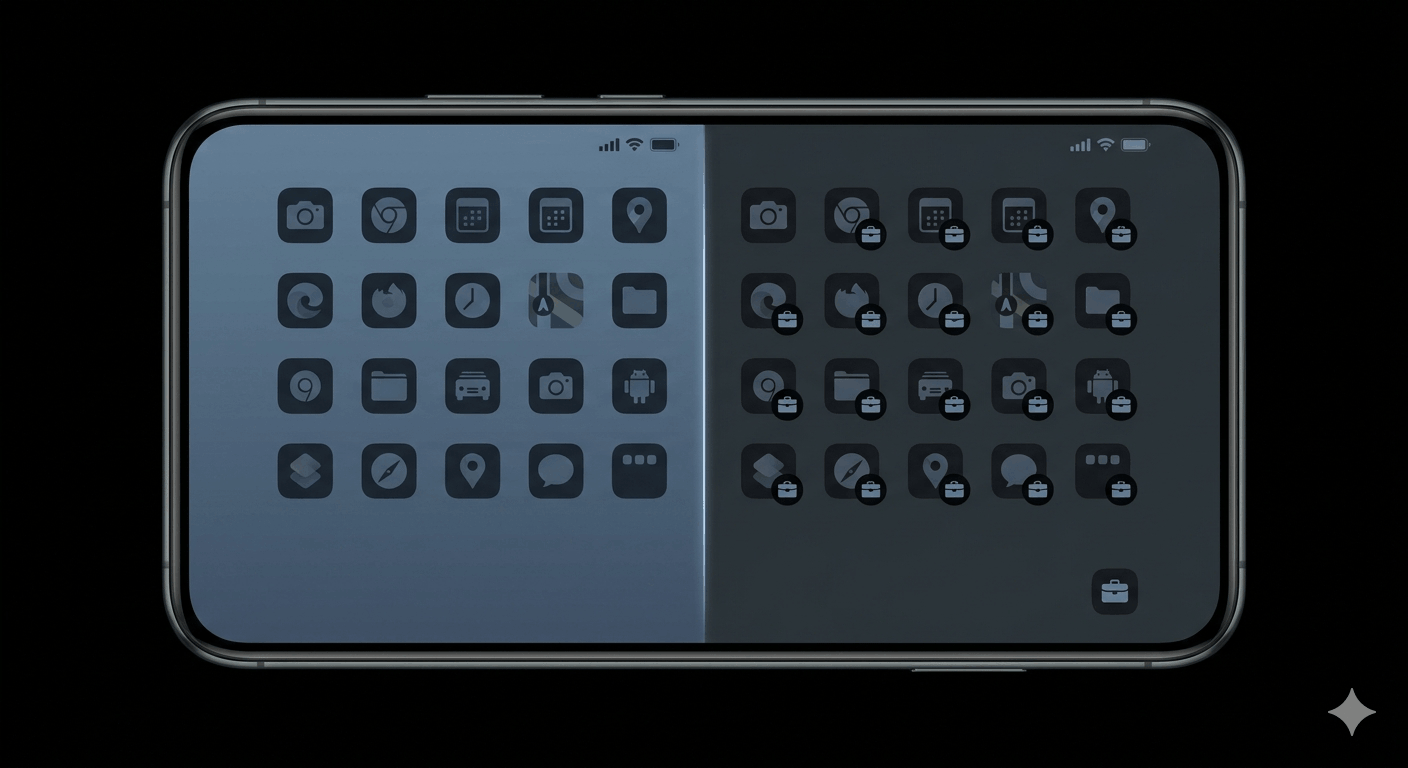
The Android Work Profile is a built-in OS feature designed to isolate one group of apps from another. Apps in the work profile run in a separate user space: separate storage, separate contacts, separate app data. An app installed in the work profile can't read anything from your personal profile. Literally can't — the OS enforces the boundary.
Shelter is a free, open-source app that sets up and manages this work profile without requiring root.
What you're actually setting up
Android has had work profiles since Android 5 — it's part of Android Enterprise, originally designed for corporate device management. The same mechanism that IT departments use to push work apps onto personal phones can be used by you, personally, to sandbox apps you don't fully trust.
The work profile is a separate user space at the OS level. Apps installed there have no visibility into your personal profile: they can't see your photos, your personal contacts, your personal app data. Each profile has its own separate copy of app storage. A banking app in the work profile and a banking app in your personal profile don't know the other exists.
The profile shows up in your launcher with a small briefcase badge on work profile app icons. Most launchers will display them as a separate tab or section. You can pause the entire work profile — one toggle in your quick settings — which shuts down every work profile app at once. No background processes, no notifications, no network activity. It's a clean off switch.
Why Shelter specifically
There are a few apps that can manage Android work profiles: Shelter, Island, and Insular are the main ones. Google removed both Shelter and Island from the Play Store — you'll need F-Droid to install Shelter (which, if you're thinking about sandboxing apps on Android, you probably already have).
Privacy Guides recommends Shelter specifically because it supports contact search blocking. Without this, work profile apps can still query your personal contacts via the Android contacts search API — a subtle but real data leak. Shelter closes that gap.
It's fully open source under GPL-3.0, no ads, no trackers. Island has some closed-source components and relies on Google Play Services for certain functions. For the threat model we're talking about — isolating apps that already have questionable permissions — open source matters.
Installing Shelter
- Install F-Droid if you haven't already (download the APK directly from f-droid.org — don't use a third-party mirror)
- Open F-Droid, search for "Shelter"
- Install it — Shelter is currently at version 1.9.1
- Open Shelter. It will walk you through provisioning the work profile. Android will ask you to confirm setting up a managed profile — approve it
- Once complete, you'll see Shelter's split interface: a "Main" tab and a "Work" tab
That's the full setup. The work profile is now active.
What to put in the work profile
The most useful things to move there are the apps that demand more access than their function justifies.
Work apps with aggressive permissions: Teams, Slack, Zoom, and most MDM agents routinely request access to contacts, storage, location, and more. Install them in the work profile, and your personal data stays out of reach.
Google Play apps on a mostly de-Googled setup: If you've reduced your Google footprint but still need some Play Store apps, the work profile is a clean container for them. Install Aurora Store in the work profile and keep Play-dependent apps contained there. This is one of the more practical setups I've seen for people who find themselves between "full GrapheneOS" and "stock Android with everything."
Apps you need but don't entirely trust: That weather app with the suspicious permissions. The game your kid insists on. Anything where you need the functionality but you'd prefer it didn't have free rein over your device.
Duplicate accounts: Shelter can clone apps from your main profile to your work profile, letting you run two instances of the same app with separate accounts. Two WhatsApp accounts, two Gmail setups — useful if you split personal and work identities.
The complete Android privacy guide covers the broader picture of what permissions to watch for and how to think about app trust levels generally.
Freezing apps
Shelter can freeze individual apps inside the work profile. A frozen app is fully suspended — it can't run in the background, receive notifications, make network requests, or do anything at all until you unfreeze it.
This is different from just disabling notifications. A frozen Teams installation, for example, genuinely can't do anything until you explicitly unfreeze it. Useful for apps you only need occasionally but don't want running continuously.
To freeze: in Shelter, long-press any work profile app → "Freeze". It disappears from your launcher until you unfreeze it from the Shelter interface.
Day-to-day use
The work profile quick settings tile is what makes this practical. Add "Work Profile" to your quick settings panel — on most Android phones it's a briefcase icon. Toggle it off when you're not working, and every app in the profile stops completely. Toggle it on in the morning and they come back.
File sharing between profiles isn't automatic. If a work profile app needs to save a file to your personal storage, or vice versa, you use Shelter's "Send to Main Profile" or "Send to Work Profile" share target. It shows up in the standard Android share sheet. Slightly clunky, but functional.
What this doesn't do
It's worth being clear about what the work profile is not.
It's not GrapheneOS. On a GrapheneOS secondary profile, each profile has its own encryption key and can be wiped independently. The isolation is much deeper. If a motivated adversary got kernel-level code execution on a stock Android device, the work profile boundary wouldn't hold. For most people, that's not the threat model — but if it is yours, GrapheneOS is the more serious answer.
It's also not a container in the Docker sense. Both profiles share the same Android kernel. The isolation is at the OS framework layer, not the hardware layer.
What it is: a practical, no-root way to meaningfully limit what your installed apps can see. For the specific problem of "I have to install Teams and I don't want it reading my personal contacts," it works exactly as advertised. And for people who want more Android privacy without switching phones or flashing custom ROMs, it's one of the more realistic options available.