How to Set Up Email Aliases with SimpleLogin or Addy.io
Email aliases keep your real address out of breach data and spam lists. Here's how to set up SimpleLogin or Addy.io from scratch — first alias, browser extension, catch-all, and which one to actually pick.
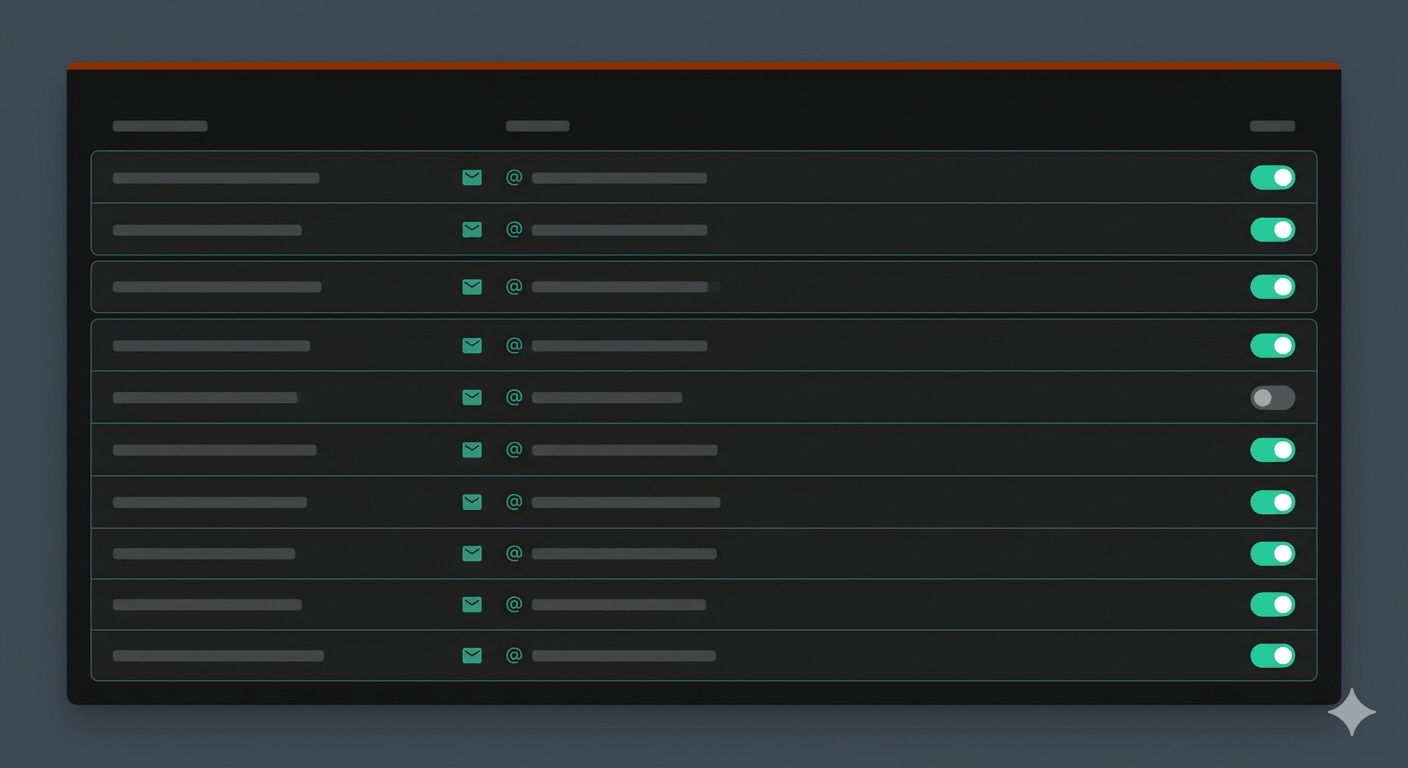
Email aliases are forwarding addresses — you give a site [email protected], mail arrives in your real inbox, and when that alias starts attracting spam you disable it in one click. Your real address was never exposed. This guide covers setting up either SimpleLogin or Addy.io from scratch: account creation, first alias, browser extension, and mobile app.
If you're still deciding whether aliases are worth the setup, the case for email aliases covers the why.
Why aliases matter more than you think
Your email address is the most reused identifier you own. The ITRC's 2024 Annual Data Breach Report tracked 3,158 data compromises last year, generating 1.7 billion victim notices. Every breach that includes your email is another copy in circulation — and once it's out, it stays out.
Gmail's plus-sign trick ([email protected]) is widely stripped by sign-up forms and doesn't hide your real address — it just tags the message. Temp email services delete your inbox within hours, losing verification and recovery links. Catch-all on a custom domain organizes mail but doesn't provide privacy — [email protected] trivially connects to [email protected].
Alias services handle what none of these do: genuinely unlinkable forwarding addresses across multiple domains, two-way reply without exposing your real email, and instant kill-switch when one gets compromised.
When an alias registered only to one service starts receiving spam, you know exactly which provider leaked or sold your address. That's not just spam control — it's a monitoring system. You get actionable signal about which companies treat your data carelessly.
Which service to use
Pick SimpleLogin if you want the simplest setup, are in the Proton ecosystem, or want anonymous replies on the free tier. Owned by Proton (Swiss jurisdiction), free tier gives you 10 aliases with full reply capability. Premium is $4/month standalone or bundled with Proton Pass Plus at $35.88/year.
Pick Addy.io if you want a custom domain with catch-all for $12/year, PGP encryption on the free tier, regex rules, or a full API. Solo developer project, open-source, servers in Amsterdam. The free tier has a 10MB/month bandwidth cap (~140 plain-text emails) — the Lite plan at $1/month removes it.
Both are covered below. The setup steps are similar.
Setting up SimpleLogin
1. Create your account
Go to simplelogin.io. Sign in with an existing Proton account or create a standalone account with any email address.
The free tier gives you 10 aliases total — not per month, permanently. For a one-alias-per-service approach, 10 runs out quickly. Premium removes the cap.
2. Create your first alias
Dashboard → New alias → Random alias.
You'll get something like [email protected]. Every email sent to that address forwards to your real inbox. When you reply from your inbox, SimpleLogin routes it back through their servers — the recipient sees only the alias address, never your real one.
Name your aliases consistently. The format [service]-[suffix] works well: amazon-fg42, netflix-kd91. On the free tier, the suffix is auto-generated; Premium lets you set a custom prefix. Either way, keep a note mapping each alias to its service.
3. Install the browser extension
After logging in, the extension inserts a Create alias button directly into email fields on any site. One click creates the alias and pastes it into the field — no context-switching to the dashboard.
4. Install the mobile app
Available on the App Store, Google Play, and F-Droid. Log in with the same account. Use it to create aliases on the fly from your phone — useful at in-store checkouts or registration screens.
5. Enable catch-all (Premium + custom domain)
With a custom domain added and catch-all enabled, any address @yourdomain.com reaches your inbox and auto-creates an alias on first contact. Zero-friction: hand out [email protected] mentally, manage it from the dashboard after the fact.
Setting up Addy.io
1. Create your account
Go to addy.io. No payment required to start. The free tier has a 10MB/month bandwidth cap — roughly 140 plain-text emails. If you plan to use aliases actively, start with Lite at $1/month (billed as $12/year).
2. Create your first alias
Dashboard → Aliases → Create new alias.
Choose a shared domain: @addy.io, @anonaddy.com, @anonaddy.me, and several others. Free accounts get up to 10 active shared-domain aliases at a time (UUID aliases are unlimited and separate).
Addy.io has a useful shortcut: your username subdomain has catch-all enabled by default. If your username is johndoe, any email to [email protected] reaches your inbox — no pre-creation needed. The alias appears in your dashboard after the first email arrives. Hand out [email protected] freely and manage it retroactively.
3. Install the browser extension
Available for Chrome and Firefox. Works identically to SimpleLogin's extension — inserts an alias creation button into email fields.
4. Install the mobile app
Available on Google Play and F-Droid. iOS users can use the web app at addy.io — a native iOS app is not available.
5. Enable PGP encryption (optional, free)
Go to Settings → Recipients → Add recipient. Upload your public PGP key. Addy.io will encrypt all forwarded emails before delivery to your inbox — available on all tiers including free. SimpleLogin requires Premium for PGP.
Two things to know before you start using aliases
Anonymous replies. SimpleLogin free tier lets you reply to forwarded emails — your reply routes back through their servers and the sender sees only your alias. That's the core mechanic covered in the anonymous email guide if you need more on how the routing works. Addy.io free tier has zero anonymous sends per day. If you use aliases for anything requiring two-way communication, either upgrade Addy.io to Lite ($1/month, gives you 50 replies/day) or use SimpleLogin.
Re-listing after a breach. Disabling an alias stops the spam immediately. Create a new alias for that service, update your account. Five minutes. What aliases don't prevent: data brokers knowing you exist — they work from public records, not your inbox. Aliases and opt-outs address different parts of the problem.
Naming and organising aliases at scale
The email privacy guide covers this in depth, but the practical minimum: group aliases by risk category rather than just by service.
- High-risk (banking, government, healthcare): one alias group, never shared with commercial sites
- Commercial (shopping, subscriptions): one alias per service, easy to burn individually
- Newsletters and content: separate group, burn the whole group if it goes bad
When a newsletter alias starts receiving phishing attempts, you know exactly which provider sold your address. That's actionable. A single catch-all alias for everything gives you no signal at all.
Next read:
 Frank Line Tech