
How to Self-Host n8n on a VPS
A production-ready n8n install on a Linux VPS — Docker Compose with PostgreSQL, nginx reverse proxy, SSL, firewall rules, and correct persistence so nothing breaks on restart.
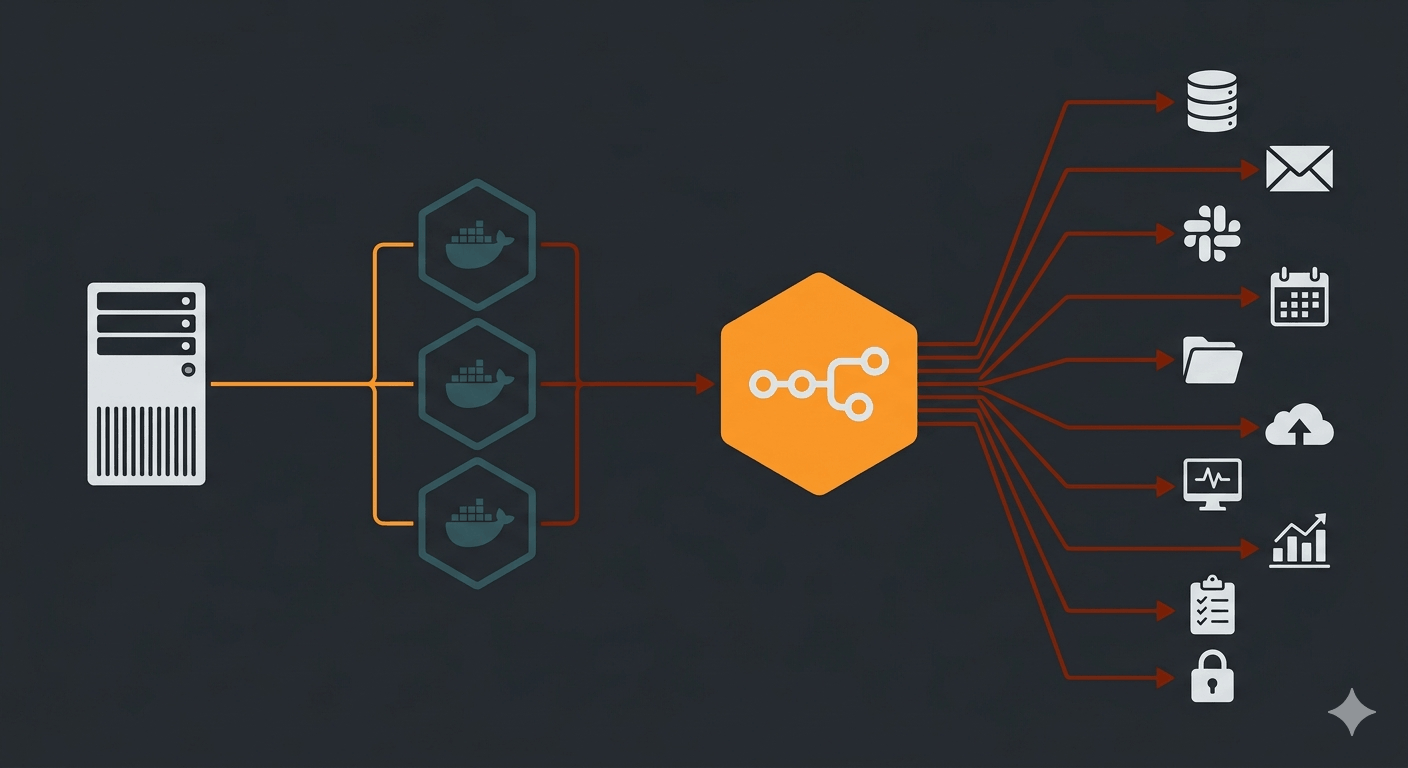
n8n is a workflow automation tool that sits somewhere between Zapier and writing your own scripts. It has a visual node editor, 400+ integrations, and a self-hosted option that puts your automation data on your own server instead of someone else's. For a privacy-focused setup — or for anyone who doesn't want to pay per workflow execution indefinitely — self-hosting makes sense.
This guide covers a production-ready n8n install on a Linux VPS: Docker Compose with PostgreSQL, nginx reverse proxy, SSL, and correct persistence so your credentials survive a container restart.
What you need
- A VPS running Ubuntu or Debian with at least 1GB RAM (2GB recommended)
- Docker and Docker Compose installed
- A domain or subdomain pointing to your VPS (e.g.
n8n.yourdomain.com) - nginx installed
- Certbot for SSL
If you need a VPS, three options worth considering: Hetzner offers the best price-to-performance ratio and is a strong choice if your audience or infrastructure is Europe-based. DigitalOcean is the most developer-friendly option — clean UI, extensive docs, and a large community if you get stuck. Vultr gives you the most location options globally and competitive bare-metal pricing if you want dedicated resources. All three run Ubuntu 22.04 LTS without issue.
If you're starting from a fresh VPS, the first 24 hours guide covers the baseline setup — SSH hardening, firewall, automatic security updates — before you add any services. Have your API keys and credentials ready in 1Password — you'll be adding several to n8n during setup, and you want independent records of all of them.
Install Docker
If Docker isn't on your server yet:
curl -fsSL https://get.docker.com | sh
sudo usermod -aG docker $USER
newgrp docker
Verify:
docker --version
docker compose version
Create the Docker Compose file
Create a directory for n8n and a compose file:
mkdir -p ~/n8n && cd ~/n8n
nano docker-compose.yml
Paste this:
version: '3.8'

services:
  postgres:
    image: postgres:15
    restart: always
    environment:
      POSTGRES_DB: n8n
      POSTGRES_USER: n8n
      POSTGRES_PASSWORD: changeme_strong_password
    volumes:
      - postgres_data:/var/lib/postgresql/data

  n8n:
    image: n8nio/n8n:1.89.2
    restart: always
    ports:
      - "127.0.0.1:5678:5678"
    environment:
      - N8N_HOST=n8n.yourdomain.com
      - N8N_PORT=5678
      - N8N_PROTOCOL=https
      - NODE_ENV=production
      - WEBHOOK_URL=https://n8n.yourdomain.com/
      - GENERIC_TIMEZONE=UTC
      - DB_TYPE=postgresdb
      - DB_POSTGRESDB_HOST=postgres
      - DB_POSTGRESDB_PORT=5432
      - DB_POSTGRESDB_DATABASE=n8n
      - DB_POSTGRESDB_USER=n8n
      - DB_POSTGRESDB_PASSWORD=changeme_strong_password
    volumes:
      - n8n_data:/home/node/.n8n
    depends_on:
      - postgres

volumes:
  postgres_data:
  n8n_data:
A few things worth noting:
Port binding: 127.0.0.1:5678:5678 binds n8n to localhost only. nginx handles all public traffic — n8n is never exposed directly to the internet.
Image version: n8nio/n8n:1.89.2 is pinned to a specific version. Do not use latest. n8n ships breaking changes without much warning, and a surprise update that breaks your active workflows is not a fun morning.
The /home/node/.n8n volume is critical. This directory contains the encryption key that protects all your stored credentials — API keys, OAuth tokens, everything you've added to n8n. If this volume disappears, every credential in n8n becomes unreadable and you'll have to re-add them all from scratch. Back it up offsite. See how to back up your VPS for a practical restic + Backblaze B2 setup that covers this automatically. Store copies of those same credentials independently in 1Password — that's your fallback if the worst happens.
PostgreSQL over SQLite: n8n defaults to SQLite, which is fine for light testing. PostgreSQL is the right call for anything you plan to run indefinitely — it handles concurrent executions correctly and won't get corrupted by a hard shutdown.
Start the containers
docker compose up -d
Check they're running:
docker compose ps
Both postgres and n8n should show as running. Check n8n logs if something looks wrong:
docker compose logs n8n
Set up nginx as a reverse proxy
Create an nginx config for n8n:
sudo nano /etc/nginx/sites-available/n8n
Paste:
server {
    listen 80;
    server_name n8n.yourdomain.com;

    location / {
        proxy_pass http://127.0.0.1:5678;
        proxy_http_version 1.1;
        proxy_set_header Upgrade $http_upgrade;
        proxy_set_header Connection 'upgrade';
        proxy_set_header Host $host;
        proxy_set_header X-Real-IP $remote_addr;
        proxy_set_header X-Forwarded-For $proxy_add_x_forwarded_for;
        proxy_set_header X-Forwarded-Proto $scheme;
        proxy_cache_bypass $http_upgrade;
        chunked_transfer_encoding on;
        proxy_buffering off;
        proxy_read_timeout 3600s;
    }
}
The proxy_buffering off and proxy_read_timeout 3600s lines matter for n8n specifically — some long-running workflow executions will time out without them. For the full nginx hardening config, see how to harden nginx.
Enable the site and get SSL:
sudo ln -s /etc/nginx/sites-available/n8n /etc/nginx/sites-enabled/
sudo nginx -t
sudo systemctl reload nginx
sudo certbot --nginx -d n8n.yourdomain.com
Certbot will modify the config to redirect HTTP to HTTPS and add the SSL certificate automatically.
Firewall rules
n8n's port should never be publicly accessible — nginx handles that. Make sure 80 and 443 are open:
sudo ufw allow 'Nginx Full'
Port 5678 should not be in your UFW allow rules — the 127.0.0.1: binding in the compose file already keeps it local. See how to configure UFW for the full firewall setup.
First login
Open https://n8n.yourdomain.com in your browser. n8n will prompt you to create an owner account on first load — set a strong password and save it in 1Password. This is your admin account; there's no recovery path if you lose it.
Once logged in, you're looking at the n8n canvas. Create a new workflow, add nodes, and activate it using the toggle in the top right.
Alternative: Cloudflare Tunnel
If you'd rather not open any ports at all — not even 80/443 — Cloudflare Tunnel is a clean alternative to the nginx setup above. The tunnel runs as a Docker container alongside n8n and routes traffic through Cloudflare's network without exposing your server's IP. The compose file gets one additional service; the rest of the setup is the same.
Keeping n8n updated
When a new version is available:
cd ~/n8n
docker compose pull
docker compose up -d
Check the n8n changelog before updating — look for any breaking changes that affect nodes you're using. Update the pinned version in your compose file after you've verified the new version works.
What to build first
Once n8n is running, the most immediately useful workflow for a Ghost-based blog is syncing new Ghost members to Kit — so every subscriber, including people who sign up to comment, ends up in your email list automatically. That setup is covered in How to Sync Ghost Members to Kit Using n8n.
Beyond that, n8n's node library covers most of what you'd otherwise route through Zapier — post notifications, social sharing, monitoring alerts, data pipelines. The difference is that your workflow data stays on your server, and the execution costs don't compound with scale. For email, VPN, and cloud storage that fits the same self-hosted, privacy-first model, Proton is the natural pairing — built in Switzerland, no ad tracking, one account for the whole stack.
Running n8n on a different setup — Proxmox, Portainer, a Raspberry Pi? Drop a comment with how you've got it configured. And if you hit a wall during the PostgreSQL or nginx step, leave the error — happy to help debug.