
The First 24 Hours on a New VPS
A 12-step hardening sequence for a fresh Ubuntu or Debian VPS — SSH keys, UFW, Fail2ban, sysctl, AppArmor and tested backups. About 45 minutes, in the order that avoids locking yourself out.

GreyNoise deployed a set of fresh sensors in November 2024 and timed how quickly the internet found them. The fastest scanners made contact within five minutes. By the time you've finished the provisioning screen and run your first apt update, your new server has already been probed.
Twelve steps, roughly 45 minutes, on Ubuntu 22.04/24.04 and Debian 11/12. RHEL, Rocky and Alma equivalents are noted where commands differ. Do them in this order, because several will lock you out if you don't.
The sequence: create a non-root user with sudo → add your SSH key and test it → disable password and root login → turn on UFW with default deny → install Fail2ban → enable unattended security updates → add swap → disable unused services → set hostname and timezone → harden kernel parameters → enable AppArmor → set up backups and restore from one.
If you only do four: steps 1, 2, 3 and 5. A non-root user with key auth, no password login, a default-deny firewall, and automatic patching close the paths automated attacks actually use.
This is the process I follow on every new VPS — Hetzner for short-lived test boxes, Vultr for production. Ubuntu 22.04/24.04 and Debian 11/12 primarily. RHEL/Rocky/Alma equivalents are noted where commands differ.
1. Create a Non-Root User with Sudo
adduser frank
usermod -aG sudo frank
groups frank    # "sudo" must appear
On RHEL, Rocky and Alma the admin group is wheel and adduser doesn't exist:
useradd frank
passwd frank
usermod -aG wheel frank
Check groups output rather than assuming. usermod fails silently on a mistyped group name.
Every step after this one narrows access to the machine. This is the only one that adds a way in, which is why it's first — and why the most common lockout comes from doing it second:
The common mistake: settingPermitRootLogin noandPasswordAuthentication noin the same edit, before confirming that key-based login actually works for the new user. One typo inAllowUsers— misspell the username — and both root and your new user are rejected. Recovery path is the provider's web console, which on Hetzner means navigating three menus to get a VNC session that runs at roughly 5 frames per second.
2. Add Your SSH Key and Test It
Generate on your local machine, never on the server:
ssh-keygen -t ed25519 -a 100
ssh-copy-id frank@your_server_ip
-a 100 sets 100 key derivation rounds, which makes brute-forcing the passphrase far slower if the private key file is ever stolen. Ed25519 is the current recommendation for new keys — smaller than RSA, faster signing, and NIST is winding down RSA-dependent algorithms.
Adding the key by hand works too, but the permissions are unforgiving — 700 on ~/.ssh/, 600 on authorized_keys. Wrong permissions and sshd ignores the key without logging why.
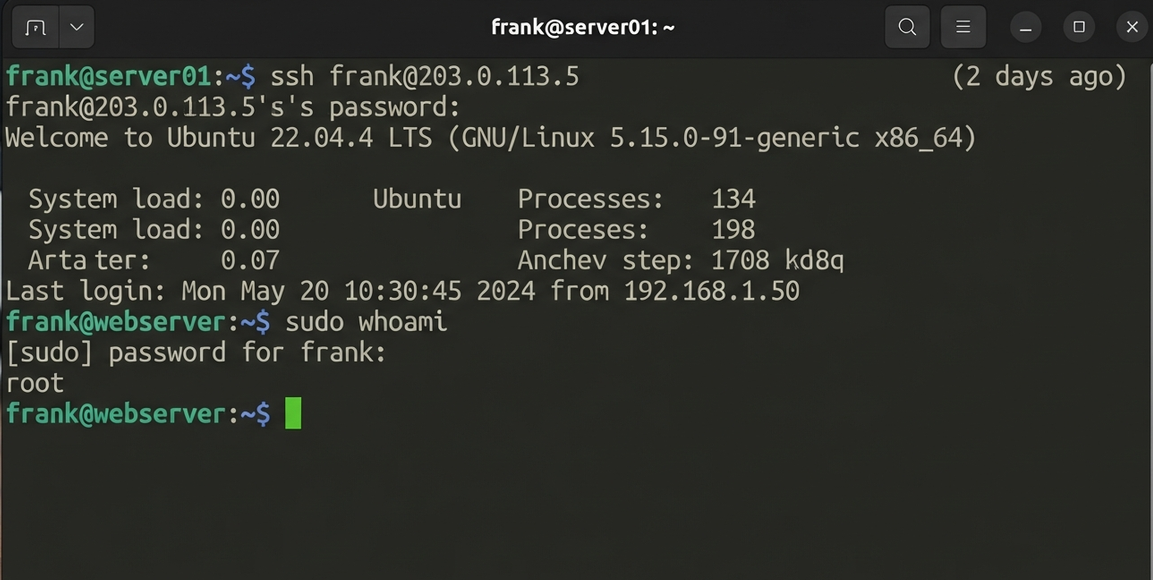
Now open a second terminal and confirm before changing anything:
frank@vps:~$ sudo whoami
[sudo] password for frank:
root
root means you have a route in that doesn't need root. Anything else, stop and fix it. Leave that second terminal open for the rest of this guide — it's the difference between correcting a typo and dialling into a VNC console.
3. Harden SSH: Keys Only, No Root Login
sudo nano /etc/ssh/sshd_config
PasswordAuthentication no
PermitRootLogin no
MaxAuthTries 3
LoginGraceTime 60
AllowUsers frank
sudo systemctl restart sshd
PasswordAuthentication no is the line that matters. AhnLab's quarterly threat reports put SSH brute-force at around 89% of endpoint threat behaviour on Linux systems, and requiring a key makes all of it irrelevant — there's nothing left to guess.
LoginGraceTime 60 halves the default 120-second window an unauthenticated connection can hold open. Qualys disclosed CVE-2024-6387 in July 2024: an unauthenticated RCE in OpenSSH 8.5p1–9.7p1 exploiting a signal handler race, which took roughly 10,000 attempts and 3–4 hours to win under the default. It's patched in 9.8p1. Grace time is exploitation budget regardless, so there's no reason to be generous with it.
AllowUsers is the line that locked me out. Read it twice.
Same service name and config path on RHEL, Rocky and Alma. SELinux runs enforcing by default and already permits sshd to read its own config.
Test in the second terminal before closing this session.
Don't bother moving SSH off port 22
Moving SSH off port 22 isn't a security measure — any competent attacker scans all ports. What it does do is eliminate most automated low-effort scanning, which can cut auth log noise by close to 98% in practice. That's not nothing if you're paying attention to your logs.
The cost is every deploy script, Ansible inventory and backup job that assumes 22, each of which breaks at a bad moment. Key-only auth has already made the brute-force traffic harmless, so what's left is a tidier log file. I take the noise. If you do move it, ufw allow ssh opens 22 — not your new port.
4. Set Up the Firewall with UFW
Add the SSH rule before enabling UFW. Enable first and the default deny policy drops the session you're in. This is the most common panic post in VPS forums.
First, one check that most guides skip:
grep IPV6 /etc/default/ufw
It has to say IPV6=yes. If it says no or is missing, your rules cover IPv4 only — the ip6tables rules never get created. Ubuntu assigns both an IPv4 and an IPv6 address by default on most providers, so anyone arriving over IPv6 walks past every rule you wrote, and ufw status looks perfectly healthy either way.
sudo ufw default deny incoming
sudo ufw default allow outgoing
sudo ufw allow ssh
sudo ufw allow 80/tcp
sudo ufw allow 443/tcp
sudo ufw limit ssh
sudo ufw logging medium
sudo ufw enable
sudo ufw status verbose
Status: active
Logging: on (low)
Default: deny (incoming), allow (outgoing), disabled (routed)

To                         Action      From
--                         ------      ----
22/tcp                     LIMIT IN    Anywhere
80/tcp                     ALLOW IN    Anywhere
443/tcp                    ALLOW IN    Anywhere
22/tcp (v6)                LIMIT IN    Anywhere (v6)
80/tcp (v6)                ALLOW IN    Anywhere (v6)
443/tcp (v6)               ALLOW IN    Anywhere (v6)
Those (v6) lines are your confirmation the IPv6 check paid off. Missing them means go back.
ufw limit ssh drops IPs opening six or more connections in 30 seconds. It acts at the packet filter, before any log is written, which is why running it alongside Fail2ban isn't redundant. logging medium records blocked packets and new connections to /var/log/ufw.log; high and full produce gigabytes a week on a public IP.
If nginx is installed, sudo ufw allow 'Nginx Full' reads better than port numbers. ufw app list shows what's available.
Where your source address is stable, restricting SSH to it is the largest single reduction in exposure available:
sudo ufw allow from 203.0.113.50 to any port 22
Same pattern for database ports and monitoring agents. Never open a database port publicly on the theory nobody knows it's there — Shodan indexes it whether anyone is looking or not.
Managing rules, and the ordering trap
sudo ufw status numbered
sudo ufw delete 2
sudo ufw reload
Delete by number rather than specification. With IP-restricted rules the specification gets long enough that a typo deletes nothing while appearing to work.
Ordering is the trap. UFW evaluates top to bottom and the first match wins, which only matters once you mix open and restricted rules on the same port. Add ufw allow 22 before ufw allow from 203.0.113.50 to any port 22 and the broad rule matches everything on port 22 first. Your restriction does nothing, both rules appear in ufw status exactly as expected, and nothing reports an error. Put the specific rule first:
sudo ufw allow from 203.0.113.50 to any port 22
sudo ufw deny 22
On RHEL, Rocky and Alma, use firewalld:
sudo systemctl enable --now firewalld
sudo firewall-cmd --permanent --add-service=ssh
sudo firewall-cmd --permanent --add-service=http
sudo firewall-cmd --permanent --add-service=https
sudo firewall-cmd --reload
5. Install Fail2ban and Configure jail.local
sudo apt update && sudo apt install fail2ban -y
sudo systemctl status fail2ban
On RHEL, Rocky and Alma it's in EPEL:
sudo dnf install epel-release -y
sudo dnf install fail2ban -y
sudo systemctl enable --now fail2ban
Fail2ban protects SSH the moment it installs, and the shipped defaults are too weak to matter — a ten-minute ban and six permitted failures, chosen so an admin on a bad connection doesn't lock themselves out. A bot banned for ten minutes waits eleven and resumes.
Don't edit /etc/fail2ban/jail.conf, and don't copy it to jail.local either. jail.conf is replaced wholesale on update, and copying it defeats the point — Fail2ban reads jail.local after jail.conf and overrides key by key, so a file containing only your changes keeps inheriting every default you didn't touch:
sudo nano /etc/fail2ban/jail.local
[DEFAULT]
bantime   = 1d
findtime  = 10m
maxretry  = 3
banaction = ufw

[sshd]
enabled = true

[nginx-http-auth]
enabled = true
sudo systemctl reload fail2ban
sudo fail2ban-client status sshd
bantime = 1d is long enough to break a scanner's schedule, short enough that your own mistake doesn't cost a day. banaction = ufw is the line people skip: without it Fail2ban writes its own iptables rules, so you end up with two independent rule sets that don't know about each other and two places to check when something's blocked.
[nginx-http-auth] bans repeated HTTP basic auth failures. For request floods rather than auth failures, nginx-limit-req exists but needs limit_req_zone configured first — see hardening nginx.
One failure mode produces a jail that reports itself active and protects nothing. Some minimal and containerised images use systemd-journald without writing a flat /var/log/auth.log, which the default filter reads. No file, nothing parsed, no bans:
[sshd]
enabled = true
backend = systemd
After a day, check what it caught:
Status for the jail: sshd
|- Filter
|  |- Currently failed: 2
|  |- Total failed:     847
|  `- File list:        /var/log/auth.log
`- Actions
   |- Currently banned: 14
   |- Total banned:     203
   `- Banned IP list:   103.x.x.x 45.x.x.x ...
Nothing on that machine was advertised anywhere. sudo tail -f /var/log/fail2ban.log confirms the jail is firing rather than merely running.
Unbanning yourself
You will do this eventually — testing from a different network, a passphrase typo three times, a script with stale credentials:
sudo fail2ban-client set sshd unbanip YOUR.IP.ADDRESS
Running it needs the SSH access you no longer have. That's the second reason to know where your provider's web console is before you need it.
Fail2ban or CrowdSec?
Fail2ban on simpler single-purpose machines, CrowdSec on production stacks — that's how I split it.
Fail2ban only knows about attacks hitting your server. CrowdSec shares intelligence across every instance globally — as of 2025 processing around 15 million threat signals per day — so an address that hit a server in Frankfurt this morning is on your blocklist before it reaches you. CrowdSec also uses nftables IP sets rather than one iptables rule per ban, so large blocklists don't degrade packet processing.
6. Enable Automatic Security Updates
sudo apt install unattended-upgrades -y
sudo dpkg-reconfigure --priority=low unattended-upgrades
cat /etc/apt/apt.conf.d/20auto-upgrades
APT::Periodic::Update-Package-Lists "1";
APT::Periodic::Unattended-Upgrade "1";
On RHEL, Rocky and Alma:
sudo dnf install dnf-automatic -y
sudo systemctl enable --now dnf-automatic-install.timer
Linux kernel CVEs hit 3,529 in 2024 — a 1,117% increase over 2023 — and reached 5,530 in 2025. Manual review doesn't survive that volume; the realistic alternative to automation is a server running four-month-old packages.
This is safe to leave unattended because it only touches the -security pocket by default. Security patches apply; feature updates wait for a deliberate apt upgrade. Verify with that cat — the interactive prompt is easy to click through wrong.
Kernel updates install but don't take effect without a reboot. On a personal server you can enable automatic reboots in /etc/apt/apt.conf.d/50unattended-upgrades (Ubuntu's documentation covers the timing options). For anything production-shaped, schedule it yourself rather than finding out it happened at 3am.
7. Add a Swap File
sudo fallocate -l 2G /swapfile
sudo chmod 600 /swapfile
sudo mkswap /swapfile
sudo swapon /swapfile
echo '/swapfile none swap sw 0 0' | sudo tee -a /etc/fstab
echo 'vm.swappiness=10' | sudo tee -a /etc/sysctl.d/99-hardening.conf
sudo sysctl --system
free -h
If fallocate fails, which happens on some OpenVZ providers:
sudo dd if=/dev/zero of=/swapfile bs=1M count=2048 status=progress
A 1 GB VPS running a web server will eventually hit a memory spike, and without swap the OOM killer terminates whatever is using the most memory — usually your database or web server. Swap turns that into degraded performance instead of an outage.
Two details matter. chmod 600 isn't cosmetic: a world-readable swap file hands any local user the memory contents of every paged-out process. And the /etc/fstab line is what survives a reboot — skip it and you have swap until the next restart.
Swappiness defaults to 60, tuned for spinning disks. On SSD-backed VPS storage running one service, paging out something you're about to need again costs response time for nothing. Ten keeps the kernel in RAM until things are genuinely tight. DigitalOcean's swap guide covers sizing for other RAM configurations.
8. Disable Services You Don't Need
systemctl list-units --type=service --state=running
sudo systemctl disable --now servicename
sudo apt autoremove
Every running service is something listening or something with file access. The ones you chose get patched and watched; the ones that came with the image get neither. A dedicated server has no use for a print service, Bluetooth, or a mail transfer agent you'll never configure but which will accept connections anyway.
Fresh images are usually fairly lean, so this often turns up little. Some provider images ship monitoring agents or a stray database you didn't ask for.
9. Set Hostname, Timezone and Verify Logging
sudo timedatectl set-timezone UTC
sudo hostnamectl set-hostname your-hostname
sudo systemctl status rsyslog
ls -la /var/log/auth.log
UTC everywhere means logs from different machines line up without timezone arithmetic. Update /etc/hosts so 127.0.1.1 resolves to the new hostname, or sudo starts pausing for a few seconds while it fails to resolve.
That last check matters more than it looks: Fail2ban depends on /var/log/auth.log, and some minimal images ship without rsyslog. No rsyslog means no auth log, which means step 5 issues no bans while reporting the jail active.
sudo apt install rsyslog -y
sudo systemctl enable --now rsyslog
systemd-timesyncd handles time sync by default and is fine for most workloads. Running a database or managing TLS certificates, where a few seconds of drift causes an argument between two systems? Use chrony instead:
sudo apt install chrony -y
sudo systemctl enable --now chrony
10. Harden Kernel Parameters with sysctl
sudo nano /etc/sysctl.d/99-hardening.conf
# SYN flood protection
net.ipv4.tcp_syncookies = 1

# drop packets with spoofed source addresses
net.ipv4.conf.all.rp_filter = 1
net.ipv4.conf.default.rp_filter = 1

# ignore ICMP redirects, accepting and sending
net.ipv4.conf.all.accept_redirects = 0
net.ipv4.conf.default.accept_redirects = 0
net.ipv4.conf.all.send_redirects = 0
net.ipv6.conf.all.accept_redirects = 0

# ignore source-routed packets
net.ipv4.conf.all.accept_source_route = 0
net.ipv6.conf.all.accept_source_route = 0

# log packets with impossible addresses
net.ipv4.conf.all.log_martians = 1

# restrict ptrace to direct children
kernel.yama.ptrace_scope = 1

# full memory layout randomisation
kernel.randomize_va_space = 2

# link protections
fs.protected_hardlinks = 1
fs.protected_symlinks = 1
sudo sysctl --system
Same file as the swappiness setting from step 7, which keeps every kernel tweak in one place.
The defaults here are tuned for networks that no longer exist. The kernel accepts ICMP redirects — a mechanism letting routers reshape your routing table, designed when the network was assumed friendly. It won't reject obviously forged source addresses. tcp_syncookies is the one worth knowing: a SYN flood exhausts the queue the kernel reserves for handshakes in progress, and SYN cookies skip that queue entirely by encoding connection state into the sequence number, so there's nothing to exhaust.
Two exceptions, and this is where pasted sysctl blocks cause outages. If this box runs WireGuard, Docker, or anything routing traffic between interfaces, do not add net.ipv4.ip_forward = 0. You'll break the routing those tools exist to do, and the symptom is containers with no network and nothing in any log explaining it. Guides that tell you to disable IP forwarding unconditionally are written for boxes that route nothing and don't say so.
The second is kernel.yama.ptrace_scope = 1, which stops one process attaching a debugger to another. Correct on a server, wrong on a box where you attach gdb or a profiler to running processes. Leave it at 0 if you debug here.
11. Enable AppArmor (After Your Services Work)
sudo apt install apparmor apparmor-profiles apparmor-utils -y
sudo aa-status
File permissions answer "which users can read this file". They say nothing about "which files should this program ever touch". An nginx worker running as www-data can read everything www-data can read — application source, config with database credentials in it — and needs almost none of it. AppArmor confines each program to a declared list of paths and capabilities.
The ordering warning is real, and here's what happens when you ignore it:
Don't enable AppArmor before you know what's running. On a box with a non-default nginx config, AppArmor's shipped profiles block the worker process from reading SSL certs in custom paths. The symptom is nginx refusing to start with a generic permission error — nothing in nginx's logs tells you it's AppArmor. You end up in journalctl | grep apparmor for twenty minutes before it clicks.So check the kernel log before suspecting file ownership:
sudo journalctl -k | grep -i apparmor
Roll out in complain mode, which logs what it would have blocked and blocks nothing:
sudo aa-complain /etc/apparmor.d/usr.sbin.nginx
Run your normal workload for a day, then build the profile from what the service actually did rather than what the package maintainer assumed:
sudo aa-logprof
sudo aa-enforce /etc/apparmor.d/usr.sbin.nginx
sudo aa-status
AppArmor confines the process. It has no view of what's inside the requests arriving at it, which is the other half of the problem for anything web-facing — openAppSec on nginx covers the request layer.
12. Set Up Backups, Then Restore From One
sudo apt install restic -y
sudo nano /root/.restic-env
sudo chmod 600 /root/.restic-env
export RESTIC_REPOSITORY="s3:s3.us-west-000.backblazeb2.com/your-bucket"
export RESTIC_PASSWORD="your-repo-encryption-password"
export AWS_ACCESS_KEY_ID="your-b2-key-id"
export AWS_SECRET_ACCESS_KEY="your-b2-application-key"
set -a; source /root/.restic-env; set +a
restic init
restic backup /etc /home /var/www --exclude-caches
restic forget --keep-daily 7 --keep-weekly 4 --keep-monthly 6 --prune
Credentials go in a root-only file, not your shell history — a repository password in ~/.bash_history defeats the encryption you just set up. Restic encrypts client-side, so the storage provider holds ciphertext, and deduplicates, so daily snapshots of a mostly-unchanged filesystem cost very little. Automate it on a systemd timer.
Provider snapshots are not backups. They live in the same account as the thing they protect, so an attacker with panel access deletes both, and so does a billing failure. Useful as a rollback for your own mistakes; not a recovery plan.
Then restore something, because this is the only step that produces information. A backup job exiting 0 tells you it wrote data — not that the data is complete, not that the repository is readable, not that you remember the password:
restic snapshots
restic restore latest --target /tmp/restore-test --include /etc/ssh/sshd_config
Self-hosting anything with state you'd miss — Vaultwarden being the obvious case — means including the data volume and storing the encryption key somewhere that isn't the server. Otherwise a total loss takes the vault and the means to open it together.
Audit the Result with Lynis
sudo apt install lynis -y
sudo lynis audit system
Lynis scores a running system against CIS Benchmark-style checks and reliably finds what a guide can't anticipate — world-writable files left by an installer, weak hashing rounds in /etc/login.defs, a service with a known-bad default.
Treat the score as a direction, not a target. Lynis has no idea what this server is for, so some of what it flags is hardening that makes no sense for your workload, and working through the list mechanically to raise a number is how people disable something they needed. For the condensed repeatable version of all twelve steps, there's the server hardening checklist.
Mistakes That Cost People Their Servers
Installing Docker before hardening. Docker writes its own iptables rules and inserts them ahead of UFW's. A container published with -p 5432:5432 is reachable from the internet even with deny incoming set, and ufw status shows nothing wrong because from UFW's perspective nothing is. Bind published ports to 127.0.0.1 and reverse-proxy them, or use Cloudflare Tunnel and publish nothing.
Enabling AppArmor on a fresh box. Shipped profiles assume default paths, and the resulting error appears in the service's log as an ordinary permission denial with no mention of AppArmor.
Skipping the second terminal. Every SSH or firewall change gets tested from a session already open. Ten seconds of work versus a VNC console at five frames per second.
Trusting a backup you've never restored. A job that exits 0 for six months and fails on restore is worse than no backup, because you planned around it.
The Full Sequence
For the next box. Assumes you've already got a key pair locally.
# 1-2: user and key (run ssh-copy-id from your local machine)
adduser frank && usermod -aG sudo frank

# 3: SSH — edit /etc/ssh/sshd_config, then:
sudo systemctl restart sshd

# 4: firewall
sudo ufw default deny incoming && sudo ufw default allow outgoing
sudo ufw allow ssh && sudo ufw limit ssh
sudo ufw allow 80/tcp && sudo ufw allow 443/tcp
sudo ufw logging medium && sudo ufw enable

# 5-6: fail2ban and updates
sudo apt install fail2ban unattended-upgrades -y
sudo dpkg-reconfigure --priority=low unattended-upgrades

# 7: swap
sudo fallocate -l 2G /swapfile && sudo chmod 600 /swapfile
sudo mkswap /swapfile && sudo swapon /swapfile
echo '/swapfile none swap sw 0 0' | sudo tee -a /etc/fstab

# 9: hostname and time
sudo timedatectl set-timezone UTC
sudo hostnamectl set-hostname your-hostname

# 10-12: sysctl, apparmor, backups
sudo sysctl --system
sudo apt install apparmor-utils restic lynis -y
What to Do Next
The floor is in place: no password logins, no root SSH, default-deny across both address families, automatic patching, brute-force bans, swap headroom, narrowed kernel defaults, confined services, and a tested restore.
Running a web server? Harden nginx next — version disclosure, TLS, security headers, rate limiting. Self-hosting something you'd rather not expose? Cloudflare Tunnel gets traffic in without opening a port. Want to know what you're already leaking? Point Shodan at your own address.
None of this makes a server impenetrable. It raises the floor high enough that automated attacks bounce off, which is the realistic goal — GreyNoise measured the gap between "provisioned" and "hardened" at five minutes.
Provider Notes
Hetzner. Cheapest for what you get. Good for anything short-lived or expendable.
Their abuse team flags outbound scanning fast — ran nmap with -sV against a client's external range and got an email from abuse@ within four hours asking to confirm authorization. Legitimate recon needs to happen from a different provider or through a VPN.Vultr. Production. Ghost blog, n8n automations, CrowdSec — anything that needs uptime lives here. Fewer restrictions, stable, slightly more per month.
DigitalOcean and Linode. Both work, neither stands out on price against the two above. DigitalOcean's tutorials remain the best in the category, often clearer than the official docs for whatever you're installing.
Whichever you pick, find the web console before you need it. Every provider has one, it's always a few menus deeper than you expect, and the moment you need it is the moment you can't search for it from the machine that's broken.